
Video Preview
The Ravnur Media Player supports preview images that appear when users hover over the progress bar, making it easy to navigate to specific moments in the video.
Basic Preview
Add preview images to your video by providing a URL to an vtt file containing preview image information. The player will automatically display preview images when users hover over the progress bar.
Setup Code
const mediaSource = {
  id: 'thumbnails-demo',
  src: 'https://test-streams.mux.dev/x36xhzz/x36xhzz.m3u8',
  type: 'application/x-mpegURL',
  title: 'Big Buck Bunny',
  poster: '/media/big-buck-bunny-poster.jpg',
  preview: '/media/big-buck-bunny-thumbnails.vtt'  // WebVTT file that maps time ranges to sprite tiles
};

player.setup(mediaSource);
Preview Image File Format
Preview images are provided as a WebVTT file that can reference either individual images or a sprite sheet containing multiple preview images arranged in a grid.
WebVTT Preview Image Format
The WebVTT file contains timing information and image references for each preview image.
WEBVTT

00:00:00.000 --> 00:00:05.000
/thumbnails/thumb-0.jpg

00:00:05.000 --> 00:00:10.000
/thumbnails/thumb-1.jpg

00:00:10.000 --> 00:00:15.000
/thumbnails/thumb-2.jpg
Sprite Sheet Preview Image Format
When using sprite sheets, preview images are arranged in a grid within a single image. The #xywh syntax defines the position and size of each preview image within the sprite.
The demo above uses this sprite sheet: one 160×90 frame for every 5 seconds of the 10-minute video, 126 frames in a 10-column grid, about 300 KB. One image request covers the whole timeline.
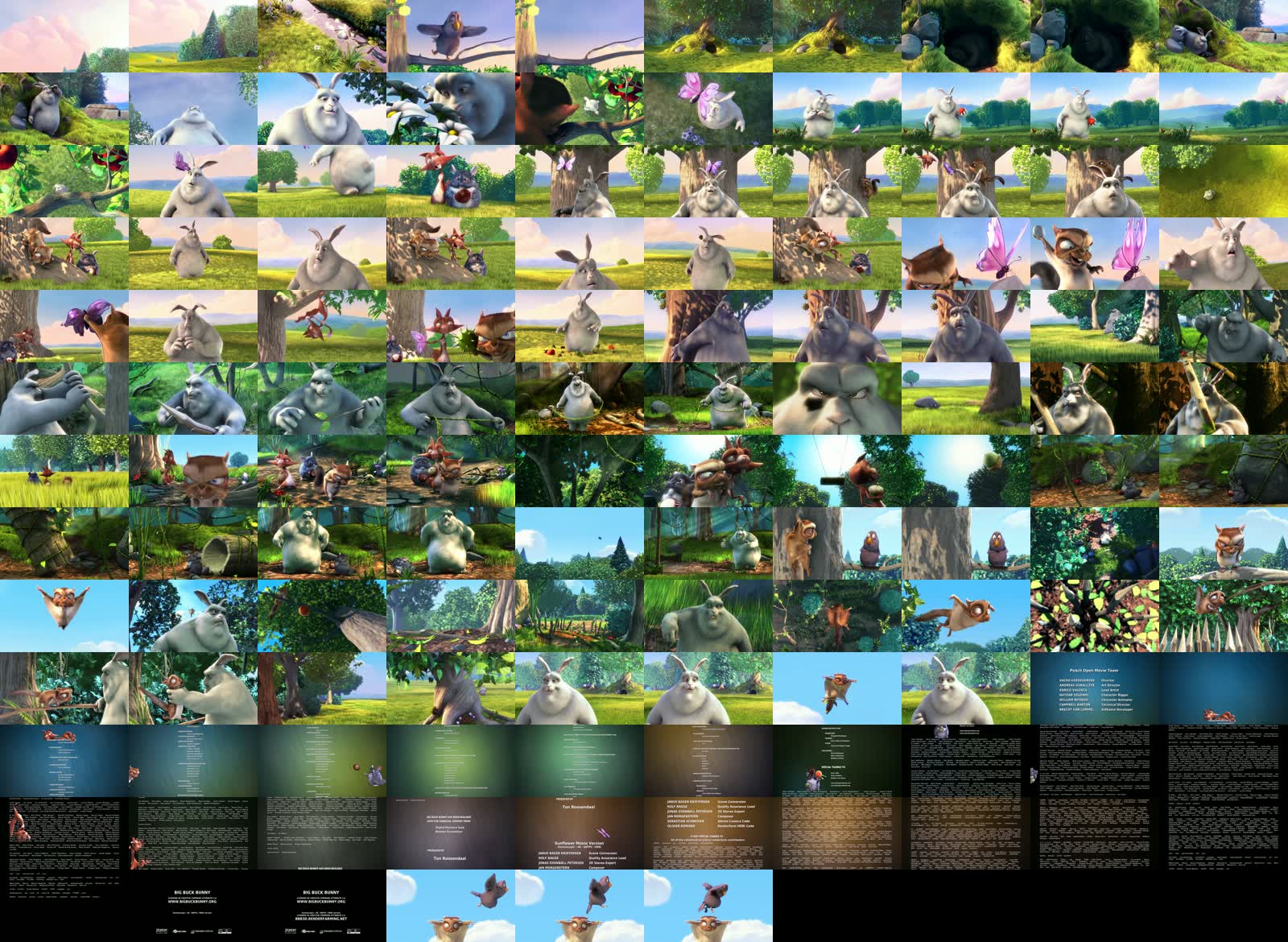
And these are the first cues of its WebVTT file. After 10 frames the grid wraps, so the 11th cue moves to the next row (y=90).
WEBVTT

00:00:00.000 --> 00:00:05.000
/media/big-buck-bunny-sprite.jpg#xywh=0,0,160,90

00:00:05.000 --> 00:00:10.000
/media/big-buck-bunny-sprite.jpg#xywh=160,0,160,90

00:00:10.000 --> 00:00:15.000
/media/big-buck-bunny-sprite.jpg#xywh=320,0,160,90

...

00:00:45.000 --> 00:00:50.000
/media/big-buck-bunny-sprite.jpg#xywh=1440,0,160,90

00:00:50.000 --> 00:00:55.000
/media/big-buck-bunny-sprite.jpg#xywh=0,90,160,90

00:00:55.000 --> 00:01:00.000
/media/big-buck-bunny-sprite.jpg#xywh=160,90,160,90
Preview Image Coordinate System (xywh)
x- Horizontal position (pixels from left edge)y- Vertical position (pixels from top edge)w- Width of the preview image (pixels)h- Height of the preview image (pixels)